Global Search & Filter Chips
Open the Search tab to search across your entire local library instantaneously. Use the filter chips below the search bar to narrow results:
- Rating: Filter by minimum star rating (1–5 stars). Click the active rating again to clear it.
- Year Range: Restrict results between a start and end release year.
- Format: Filter by pressing or medium (LP, 7", CD, Comic, etc.).
- Genre / Style: Filter by one or more genres or styles.
- Clear Filter: When any filter chip is active, tap its adjacent Clear (
close) button to reset just that filter.
Voice Search
Tap the Voice Search microphone button inside the search bar (when supported by your browser) to speak an artist, album, or comic series name hands-free.
Barcode, Quick Check & Batch Add
Tap + → Quick Check (or + → Add Record) to open the scanner and release finder:
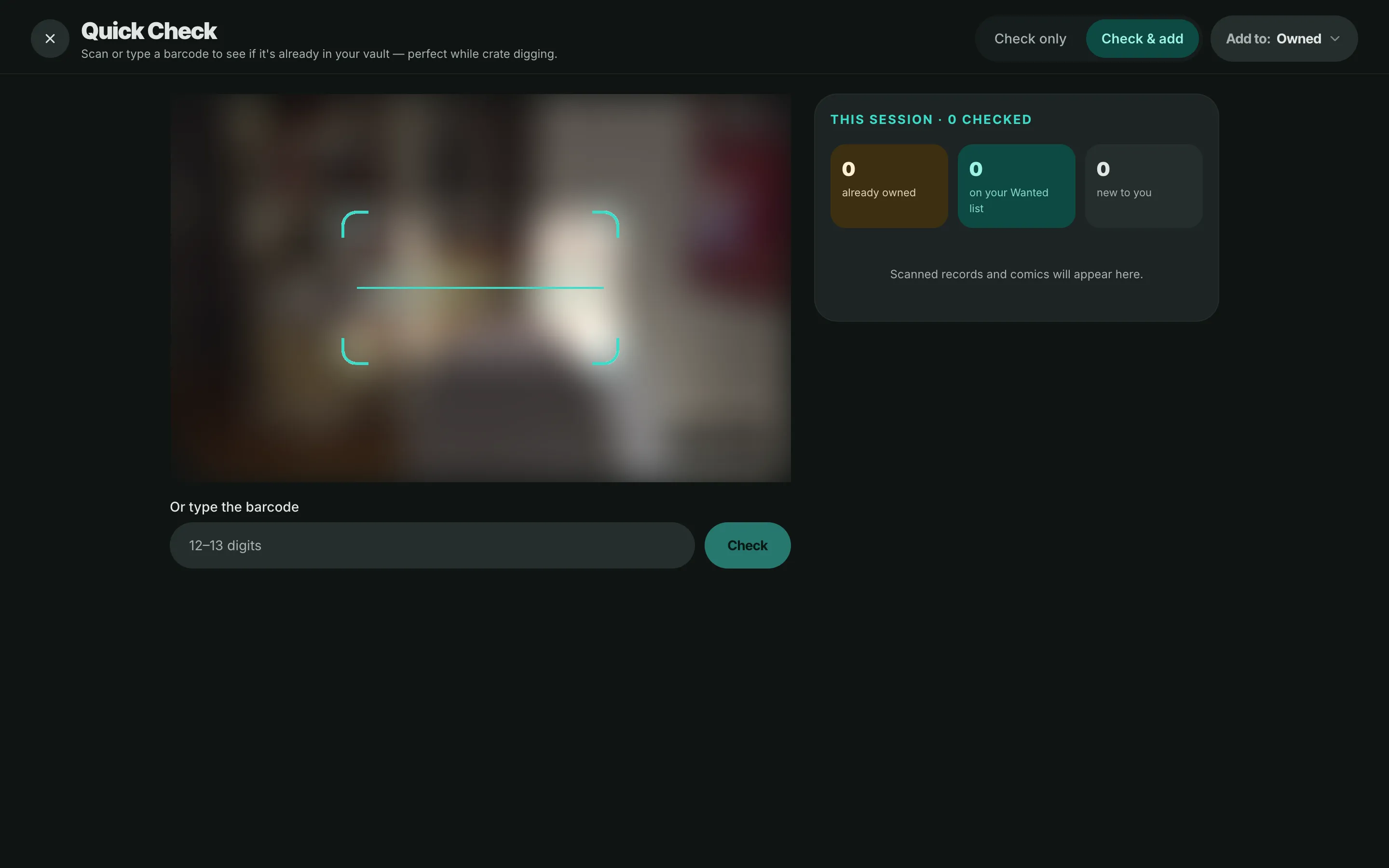
- Quick Check Modes: On desktop, switch between Check only (lookup without adding) and Check & add (automatically add matches to your chosen crate) alongside a live session history panel. On phone, switch between Add record and Quick Check.
- Barcode Scanner: Point your camera or type a barcode to check if you already own the release, have it on your Wanted list, or if it's new to your vault.
- Search-First Add Flow & Batch Add: Opening + → Add Record starts with a search bar (MusicBrainz & Discogs) plus bento cards for Scan barcode, Photo of the cover, and Type it in, alongside recently added records and bulk import. You can confirm a single pressing or multi-select results to batch-add at once.
AI Photo Recognition BYOK
No barcode on a vintage sleeve or slab? Enable AI Photo Recognition (BYOK) in Settings → Metadata & Sync with your Google Gemini or OpenAI API key:
Local-First & Private
Cover photos are sent directly from your browser to your configured Gemini or OpenAI endpoint using your own API key — never through a Cratr AI server.
- Live Camera or Photo Upload: Snap a photo directly with your camera or upload an existing image from your device.
- Cover, Spine & Label Clues: Cratr analyzes album covers, record spines, center labels, or comic covers to extract the artist/series, title, and release clues and pre-fill your search.