Cratr stores your collection locally in your browser (IndexedDB and localStorage), so you always own your data. You can export a full portable archive at any time, restore from a backup, or bulk-import records from an Excel or CSV spreadsheet.
Exporting a JSON Backup
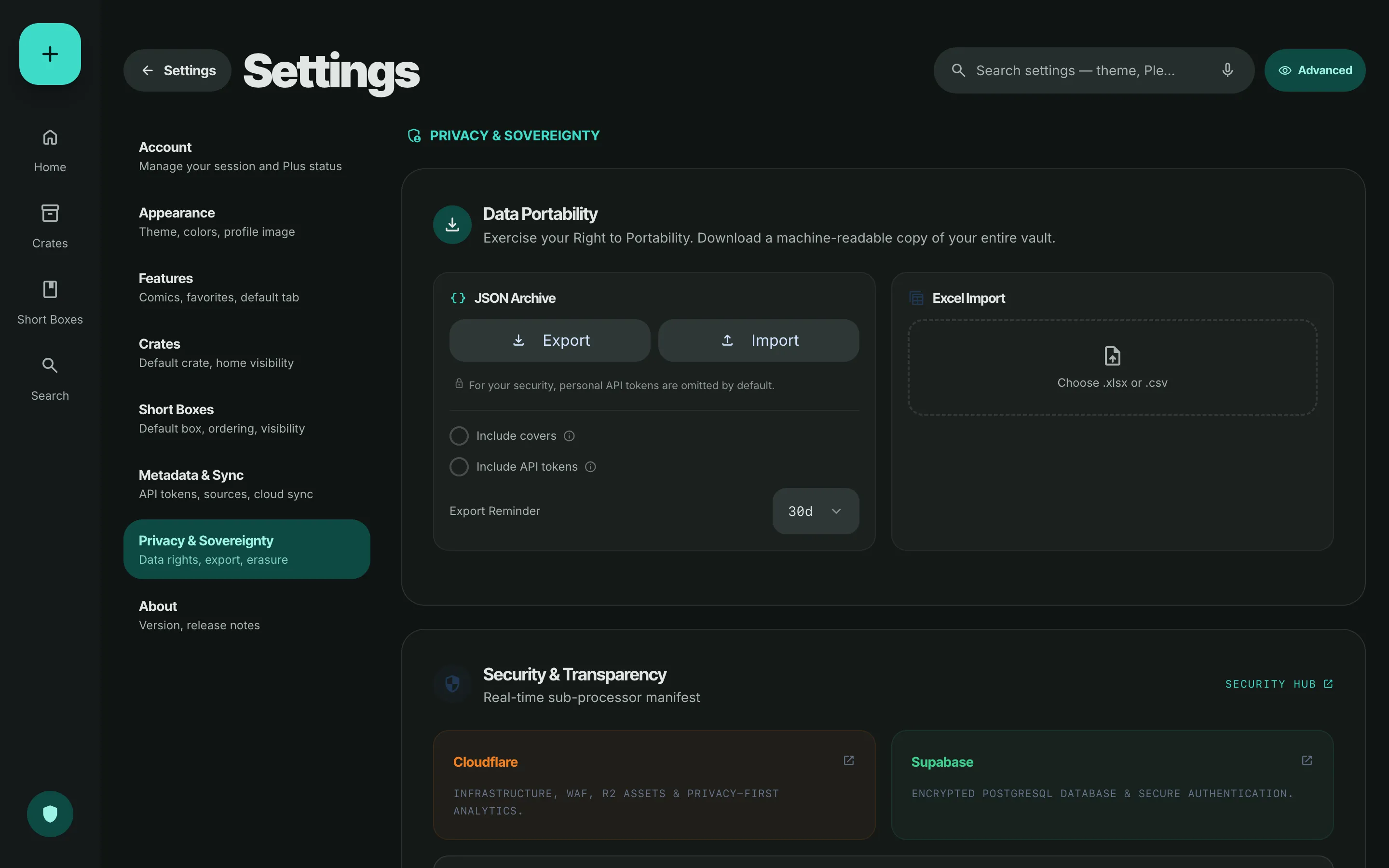
Open Settings → Privacy & Sovereignty → Data Portability → JSON Archive and click Export to download a timestamped cratr-backup-YYYY-MM-DD.json file containing your records, crates, comics, short boxes, Plex library cache, and app preferences.
- Include covers: Embeds album and comic cover images directly inside the JSON as Base64 data URLs so the backup is completely self-contained offline. Cratr displays an estimated file size before you export because embedded images increase file size.
- Include API tokens: Off by default for your security. Enable this only when migrating to another device and you want to carry over your personal Discogs, ComicVine, and Metron keys. Keep the resulting file private.
- Export Reminder: Set an automatic reminder interval (Off, 7d, 14d, 30d, 60d, or 90d) so Cratr nudges you to save a fresh local snapshot.
Restoring a JSON Backup
To restore from a saved .json file, click Import under JSON Archive in Settings → Privacy & Sovereignty → Data Portability (or drag and drop the file onto the empty-state Home drop zone).
- Select your
cratr-backup-*.jsonfile and confirm in the Restore Backup? dialog. - Cratr merges the backup into your current library: a record is skipped if its ID already exists, or if an existing record matches on artist, title, crate, Discogs ID, format, and variant (with Discogs instance IDs distinguishing multiple copies).
- If you want a completely clean restore without keeping existing local items, clear your library first under Settings → Privacy & Sovereignty → Danger Zone.
Tip
Restoring a cloud backup from Google Drive or Dropbox uses the same merge behavior and preserves your local API tokens so you don't have to re-authenticate connected services.
Importing from Excel & CSV
You can bulk-import vinyl records from a spreadsheet via Settings → Privacy & Sovereignty → Data Portability → Excel Import (accepts .xlsx and .csv) or by dropping an .xlsx file onto the empty-state Home drop zone (which imports directly into the current crate).
If you are starting from scratch, click Download Excel Template for Manual Entry on the empty-state Home screen to get a pre-formatted ledger_template.xlsx file.
Supported Spreadsheet Columns
Cratr reads the first worksheet and matches header names case-insensitively:
- Required / Core:
Title(orName/Album),Artist - Release Details:
Year(orDate),Format(orMedium),Genre,Label,Country,Barcode - Personal Metadata:
Condition,Rating,Notes - Artwork:
Cover/Cover URL/Image(URL), or images embedded directly inside.xlsxrows
Import Options
- Choose your
.xlsxor.csvfile. Cratr previews the total number of rows found. - Select Import to crate (Owned, Wanted, or any custom crate).
- Keep Skip duplicates enabled to avoid re-importing albums that already match an existing artist + title in your library.
- Click Import. If imported records are missing cover art or metadata, Cratr offers to refresh them automatically.